


| Select Colour: | Black (Base), White (Base) |
|---|---|
| Availability | In Stock |
| Condition | Brand New |
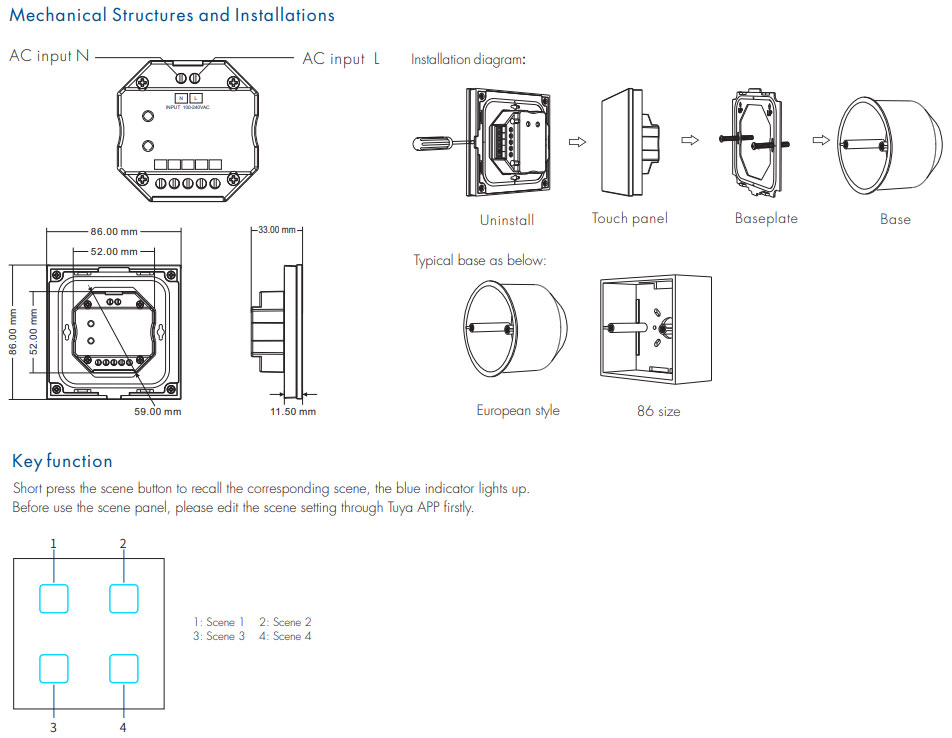
Zigbee 3.0 Wall Mounted Touch Panel, 4 Scene button /Zigbee 3.0 /Glass touch panel /AC input.
● 4-button touch scene panel remote with scene recall function.
● Built-in Tuya Zigbee 3.0 remote module, supports scenario linkage and one-click execution.
● Set scene function through Tuya APP.
● Ultra sensitive high strong glass touch panel.
● Each button with a blue LED indicator.
● Customizable button words.
● Provide a variety of Chinese/English scene button pasters, which can flexibly define the functions of each button.
TS4(WZS) Manual Download 
Standards and Certifications


Product Specification
| Model: | TS4(WZS) |
| Input voltage: | 100-240VAC |
| Input current: | Max 0.1A |
| Input signal: | Touch key |
| Output signal: | Zigbee 3.0 |
| Control distance: | 30m (Barrier-free space) |
| Operation temperature: | Ta: -30℃ ~ +55℃ |
| Case temperature (Max.): | Ta: +65℃ |
| Warranty: | 5 years |
App Operating Instructions
1. Network pairing
● Download the Tuya APP and register an account, search and add the Tuya Zigbee gateway device.
● Press and hold the "Scene 1" and "Scene 4" buttons until the 4 LED indicator light flashes. Under the gateway, you can find the WZS-Scene Panel device in Tuya APP. After successful network pairing, the 4 LED indicator lights will be on for 2 seconds and then off.
● Under the gateway, search and add one or more ZBS-DIM, ZBS-CCT, ZBS-RGB, ZBS-RGBW, and ZBS-RGB+CCT light devices.
● Scene panel unpairing: Delete the WZS-Scene Panel device from the tuya APP.
2. Remote association and scene settings
There are 8 scenes in the Tuya APP, which can be set to lighting scenes or linkage scenes.
The lighting scene is used for the overall control of multiple lamps, like the light adjustment of the entire room.
Linkage scene is used for linkage control of different equipment, such as lamps and curtains on and off together.