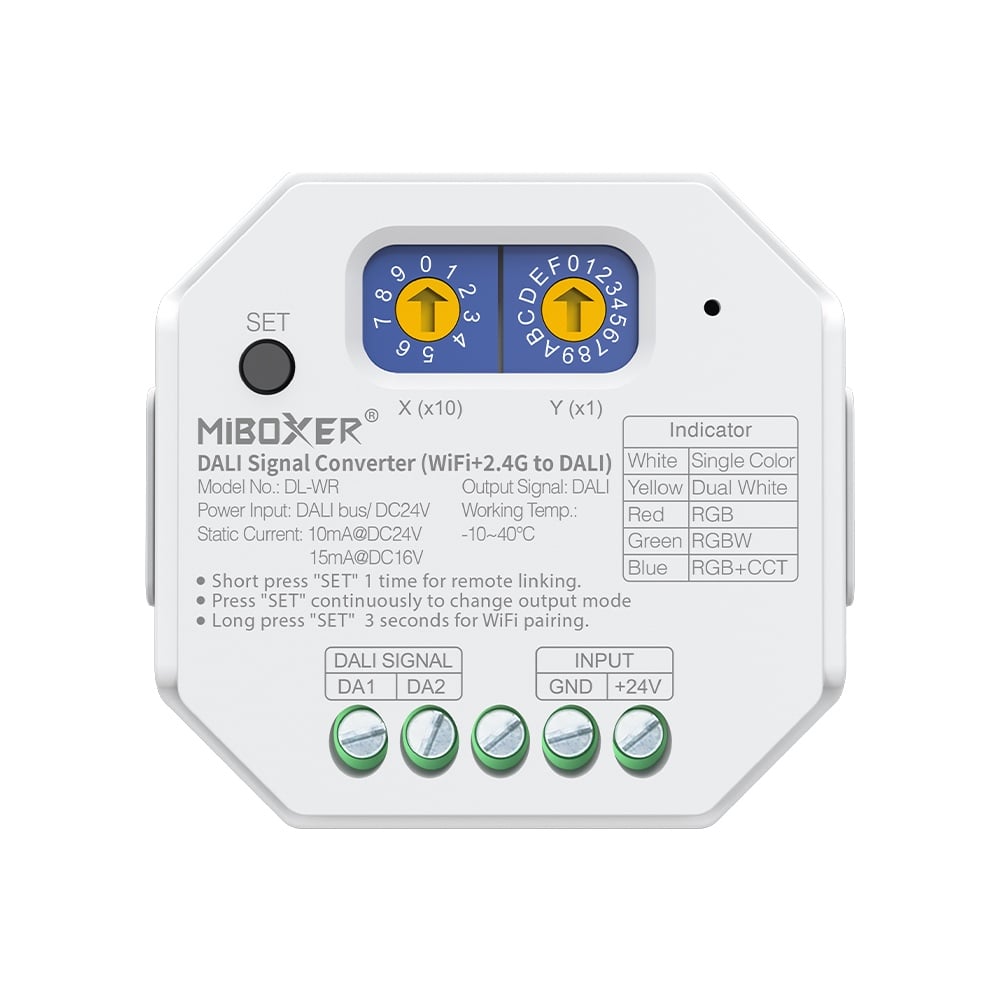
The DL-WR DALI Signal Converter is a versatile gateway that bridges modern wireless control methods with professional DALI lighting systems. It translates commands from WiFi (via the Tuya Smart app), third-party voice assistants (like Alexa and Google Assistant), and 2.4G RF remotes into standard DALI signals. This allows for intuitive, user-friendly control over sophisticated DALI installations.
This converter is fully compliant with DALI standards IEC 62386-101, 102, 207, 208, and 209. It supports DALI Device Type 6 (DT6) for dimming and Device Type 8 (DT8) for color control, making it compatible with a wide range of DALI drivers and fixtures for single color, tunable white (CCT), RGB, and RGBW applications.
Browse more in DALI Control Series.
Key Features
- DALl compliant: lEC 62386-101,102,207,208,209
- Supports DT6 dimming, DT8-TC CCT, DT8-RGB, DT8-RGBW
- Built-in 18 dynamic mode with jumping, gradually changing( only for2.4G remote control)
- Auto-forwarding: Automatically forward the remote control signal to another controller, making the remote control distance infinite
- Automatic synchronization: The same dynamic mode is automatically synchronized, so that the mode is always consistent
- Have DND function, usually used in power failure area and save power
- Support TUYA SMART app control (2.4GHz gateway is needed)
- Support third party voice control like Alexa, Google assistant,Yandex Alice, Tmall Genie,Baidu and Xiaomi(2.4GHz gateway is needed)
Why Choose This Model
The DL-WR offers exceptional flexibility for system integrators and installers. It can be powered directly from the DALI bus using a DALI bus power supply or with a standard external 24V DC power supply, adapting to different wiring scenarios. For projects using 2.4G RF control, the converter features signal auto-forwarding, where each unit re-transmits the remote's signal to others within 30 meters, creating a virtually limitless control range. The auto-synchronization feature ensures that all lights in the same group execute dynamic modes in perfect unison.
Specifications
| Name | DALl Signal Converter(2.4G to DALI) |
|---|
| Model No. | DL-WR |
|---|
| Power Input | DALIBUS/ DC24V |
|---|
| Standby Power | 10mA@DC24V/ 15mA@DC16V |
|---|
| DALI Bus Standard | IEC 62386 |
|---|
| Wi-Fi Standard | IEEE 802.11b/g/n 2.4GHz |
|---|
| RF Control distance | 30m |
|---|
| Working Temperature | -10~40℃ |
|---|
Wiring & Installation
- Mount the Converter: Secure the DL-WR converter in a suitable location. It is designed for mounting on a standard TS-35/7.5 or TS-35/15 DIN rail (purchased separately).
- Connect Power: Choose one of the two power options. Never connect both simultaneously.
- Option A (DALI Bus Power): Connect the two wires from your DALI bus to the 'DALI 1' and 'DALI 2' terminals on the converter. Ensure a DALI bus power supply is installed on the bus.
- Option B (External DC Power): Connect the positive (+) and negative (-) outputs from a 24V DC power supply to the 'Input: DC24V' terminals.
- Connect DALI Bus: If using external DC power, connect the DALI bus wires to the 'DALI 1' and 'DALI 2' terminals. These terminals connect to your DALI drivers or fixtures.
- Configure Device: Before applying main power, set the desired DALI address and light output type using the rotary switches and 'SET' button as described in the Usage section.
- Apply Power: Turn on the power to the DALI bus and/or the 24V DC power supply to energize the system.
Setup & Operation
- Set DALI Address: Use the two rotary switches (X and Y) to set the DALI address. The final address value is (X * 10) + Y.
- Unicast Mode (Address 00-63): Set switch X to a value from 0-6 and switch Y to a value from 0-9. For example, to set DALI address 32, set X to '3' and Y to '2'.
- Group Mode (Group 0-15): Set switch X to '7'. Set switch Y to a value from 0-F to select the corresponding group (e.g., Y='8' for Group 8).
- Broadcast Mode: Set switch X to '9'. Any value for Y (0-F) will result in a broadcast command to all devices on the bus.
- Set Light Output Type: Before use, short press the 'SET' button repeatedly to cycle through the supported DALI device types. The indicator light color confirms the selection:
- White Light: Single Color (DT6)
- Yellow Light: Dual White / CCT (DT8-Tc)
- Red Light: RGB (DT8-RGBWAF)
- Green Light: RGBW (DT8-RGBWAF)
- Blue Light: RGB+CCT (DT8-RGBWAF)
- Link a 2.4G RF Remote Control:
- Short press the 'SET' button on the DL-WR converter once.
- Within 3 seconds, short press the desired zone 'ON' (I) button on the remote 3 times.
- The connected DALI lights blinking 3 times slowly indicates a successful link.
- Unlink a 2.4G RF Remote Control:
- Short press the 'SET' button on the DL-WR converter once.
- Within 3 seconds, short press the desired zone 'ON' (I) button on the remote 5 times.
- The connected DALI lights blinking 10 times quickly indicates a successful unlink.
- Connect to Tuya Smart App (WiFi):
- Download and install the 'Tuya Smart' app and register an account.
- Connect the DL-WR to its power supply.
- Put the converter into network configuration mode so the indicator light flashes quickly (2 flashes per second). To do this, either long-press the 'LINK' key until it flashes quickly, or power the device off and on 6 times.
- Connect your phone to your home's 2.4GHz WiFi network.
- In the app, tap the '+' icon, select 'Lighting', then 'Light Source (BLE+Wi-Fi)'.
- Follow the on-screen prompts to complete the setup.
- Select Dynamic Mode Table (Remote Control Only):
- Activate Table 1 (Default): While lights are in a static mode, short press the 'S+' button 5 times quickly. A blue light flashing 3 times slowly confirms the change.
- Activate Table 2: While lights are in a static mode, short press the 'S-' button 5 times quickly. A yellow light flashing 3 times slowly confirms the change.
- Manage "Do Not Disturb" Mode (Power-On Behavior):
- Turn ON (Default): Short press the remote's 'OFF' button 3 times, then short press the 'ON' button 3 times. The light will flash 4 times. In this mode, the light returns to its last state after a power failure.
- Turn OFF: Short press the remote's 'ON' button 3 times, then short press the 'OFF' button 3 times. The light will flash 4 times slowly. In this mode, the light will always turn ON after a power failure.
Works With
The spec sheet lists these companion products:
Typical Applications
- Integrating smart home controls (Alexa, Google Home) with professional DALI installations
- Adding wireless remote and app control to existing DALI lighting systems
- Commercial spaces like offices and retail stores requiring flexible lighting control
- High-end residential projects using DALI for architectural lighting
- Upgrading older DALI systems with modern IoT and app-based features
- Controlling DALI-based landscape and facade lighting wirelessly
Frequently Asked Questions
What do I need to power this converter?
You can power it directly from the DALI bus if you have a DALI bus power supply on the circuit, or you can use a separate 24V DC power supply connected to its dedicated input terminals.
Can I control individual DALI lights with this?
Yes. By setting the rotary switches to a value from 00 to 63, you can address and control a single DALI device in Unicast mode. You can also control groups or all devices via group and broadcast settings.
Does this work with any DALI driver?
It is compliant with DALI standard IEC 62386 and supports DT6 and DT8 device types. It should work with any compliant DALI driver for single color, CCT, RGB, or RGBW.
Do I need a remote control to use this?
No, you can control it exclusively through the Tuya Smart app and connected voice assistants. However, for features like dynamic modes and auto-forwarding, a compatible is required.
What kind of WiFi does this support?
This device connects to 2.4GHz WiFi networks only. It does not support 5GHz networks.
How do I set the light type, for example CCT or RGBW?
Before use, short press the 'SET' button on the unit repeatedly to cycle through the light types. The indicator LED will change color to show the selected mode: Yellow for CCT, Green for RGBW, etc.
What is the 'Do Not Disturb' function?
This feature determines the light's state after a power outage. When enabled (default), the light returns to its last state (on or off) before the power was lost. When disabled, it will always turn on when power is restored.
Can I extend the control range?
When using a 2.4G RF remote, the signal auto-forwarding feature allows one converter to relay the signal to another within 30m, creating a virtually unlimited control distance as long as converters are spaced within 30m of each other.
Precautions
- Verify that the power supply voltage is in accordance with the device requirements before connecting.
- Do not connect wiring while the power is on. Ensure all connections are correct and free of short circuits before powering up the system.
- This device is not intended for use in humid or damp areas.
- Do not install the converter in a location with large metal surfaces or strong electromagnetic waves nearby, as this will seriously affect the remote control distance.
- Non-professional users should not attempt to dismantle the device.
- Installation should be performed by a qualified electrician.